Add support for air gap installations
This topic describes how to configure your application releases to support installations in air-gapped environments with little or no outbound internet access. The information in this guide applies to applications installed with Replicated Embedded Cluster or the Helm CLI.
About air gap installations with Replicated
This section provides an introduction to the Replicated Platform features that support air gap installations.
Replicated air gap bundles
Air gap bundles contain the images needed to install and run a single release of your application in environments without outbound internet access. For Embedded Cluster installations, the air gap bundle also includes assets needed to install the infrastructure, including the Embedded Cluster installer, k0s, and any Helm extensions.
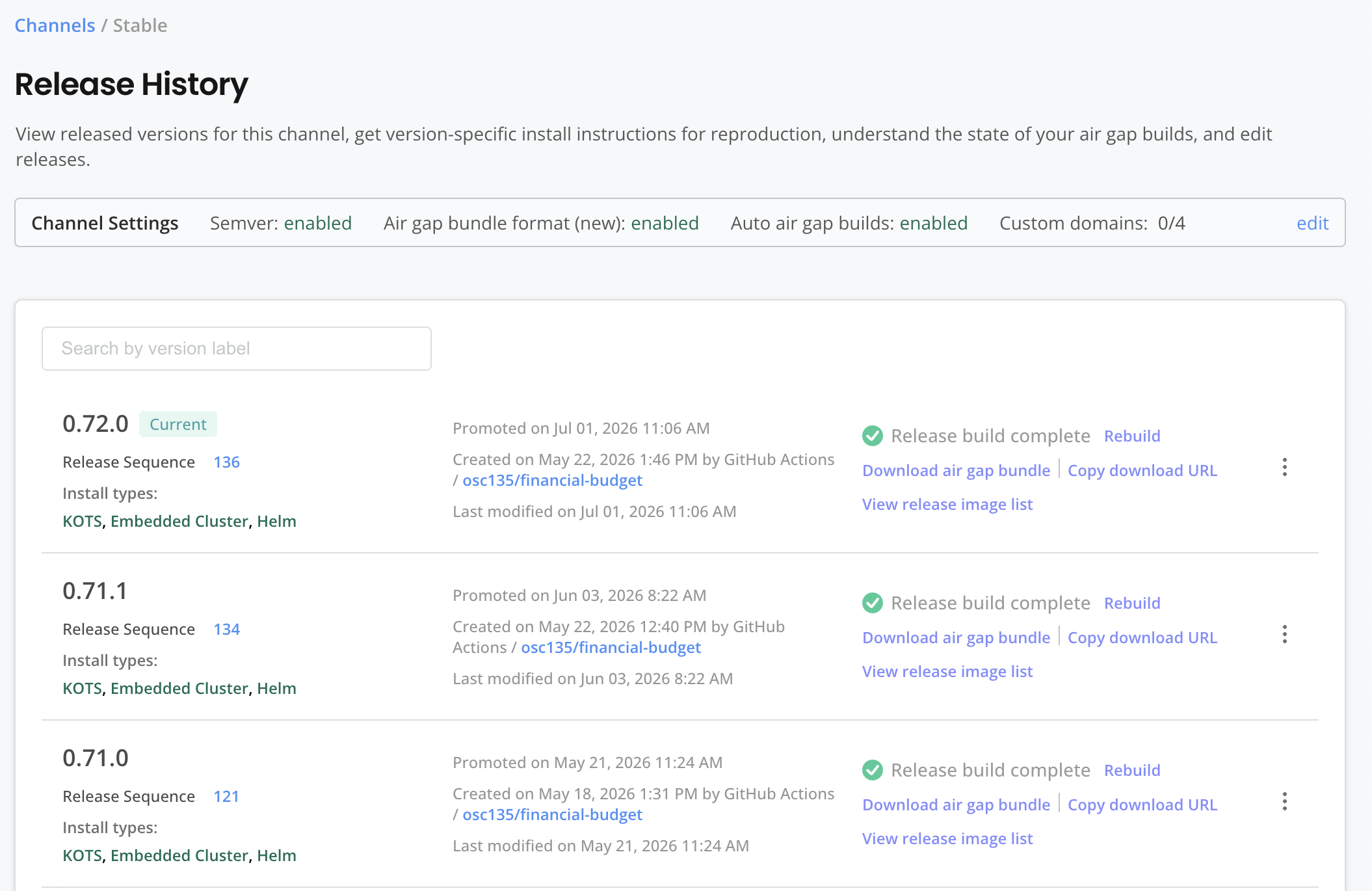
You need to build an air gap bundle for each release that will be installed in an air-gapped environment. You can build and download air gap bundles from a channel's Release History page. You can also enable the Automatically create airgap builds for newly promoted releases in this channel setting for each channel. This avoids having to manually build the air gap bundle.
The following shows an example of the Release History page for a channel:
View a larger version of this image
HelmChart builder key
The builder key contains the minimum Helm values required so that the output of helm template exposes all container images needed to install the chart in an air-gapped environment.
The Replicated Vendor Portal uses the Helm values in the builder key to run helm template on the chart. It then parses the output to generate a list of required images.
The Vendor Portal then uses this list of images to do the following:
- Create the Helm CLI air gap installation instructions that are automatically made available to customers in the Enterprise Portal or Download Portal.
- Build the
.airgapbundle for a release to support air gap installations with a Replicated installer (Embedded Cluster, KOTS, kURL). - Determine which images to scan and report on in the Security Center (Beta).
You must configure the builder key to support the following installation types:
- Air gap installations with a Replicated installer (Embedded Cluster, KOTS, kURL)
- Air gap installations with the Helm CLI
- Online installations with KOTS or kURL where the user will push images to their own local image registry
For more information, see builder in HelmChart v2.
Air gap customer license entitlements
By default, licenses support online installations only. You can control which of your customers have access to air gap installations by enabling the following built-in license fields:
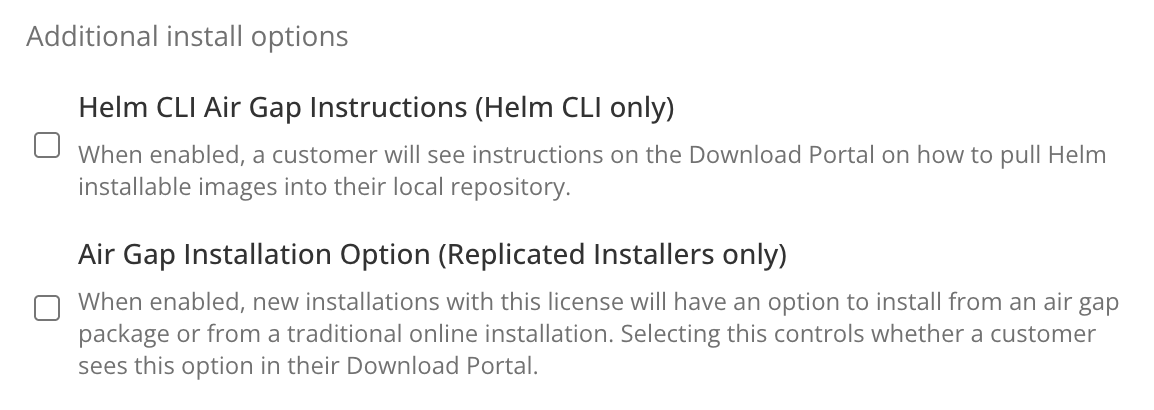
- Helm CLI Air Gap Instructions (Helm CLI only): When enabled, a customer will see instructions in the Enterprise Portal for how to pull images into their local repository. This entitlement applies to Helm CLI installations only.
- Air Gap Installation Option (Replicated Installers only): When enabled, new installations with this license show an option to install from an air gap bundle. This entitlement applies to Replicated installers only.
Licenses with these air gap entitlements support both air gap and online installations. The customer chooses the mode for each installation, and the mode cannot change afterward. An instance installed in an online environment cannot later accept an air gap bundle. An instance installed in an air gap environment does not check for new versions over the internet. A customer who needs to move an existing instance to the other mode must reinstall in the target mode.
The following shows these license fields in the Additional install options section of the Manager customer page:
View a larger version of this image
Air-gapped environments with Compatibility Matrix
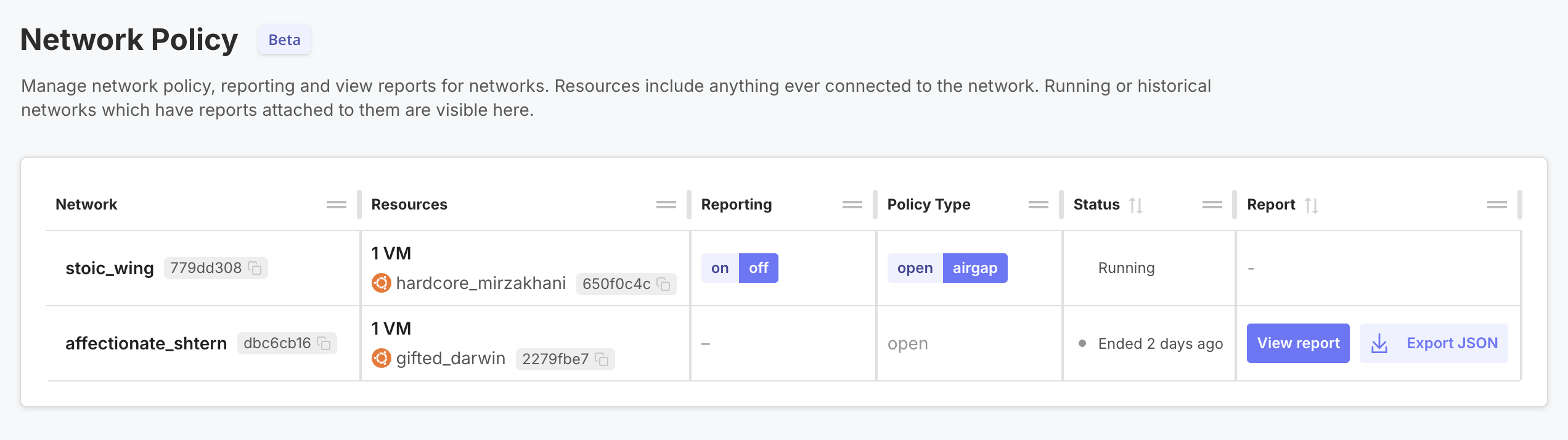
You can change the network policy of environments created with Replicated Compatibility Matrix to airgap to block outbound network requests. This allows you to simulate air-gapped environments where you can test your releases. For more information, see Create air-gapped environments.
The following shows an example of the Compatibility Matrix > Network Policy page:
View a larger version of this image
You can also generate network reports with Compatibility Matrix that capture and log all network events. These reports include details about each network event, including the domain names requested, destination IP Addresses connected to, and the source details. This helps you identify unexpected network calls before deploying to an air-gapped environment. For more information, see Collect and view network reports.
Air gap install instructions in Enterprise Portal
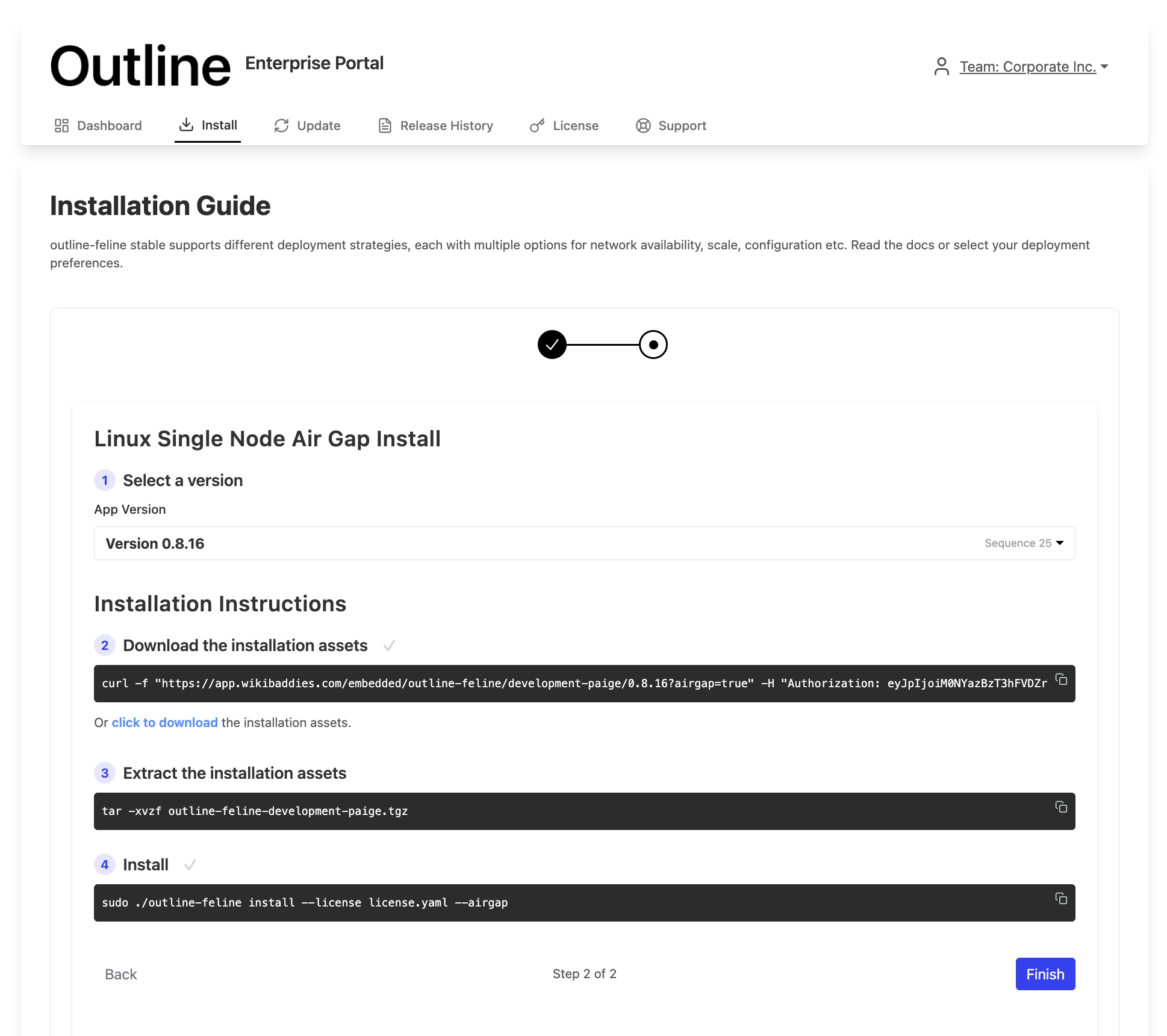
Your customers can log in to the Enterprise Portal to access instructions for installing in air-gapped environments with the Helm CLI or Embedded Cluster. The Enterprise Portal automatically generates these instructions based on the customer's license entitlements. For more information about customizing and using the Enterprise Portal, see About the Enterprise Portal.
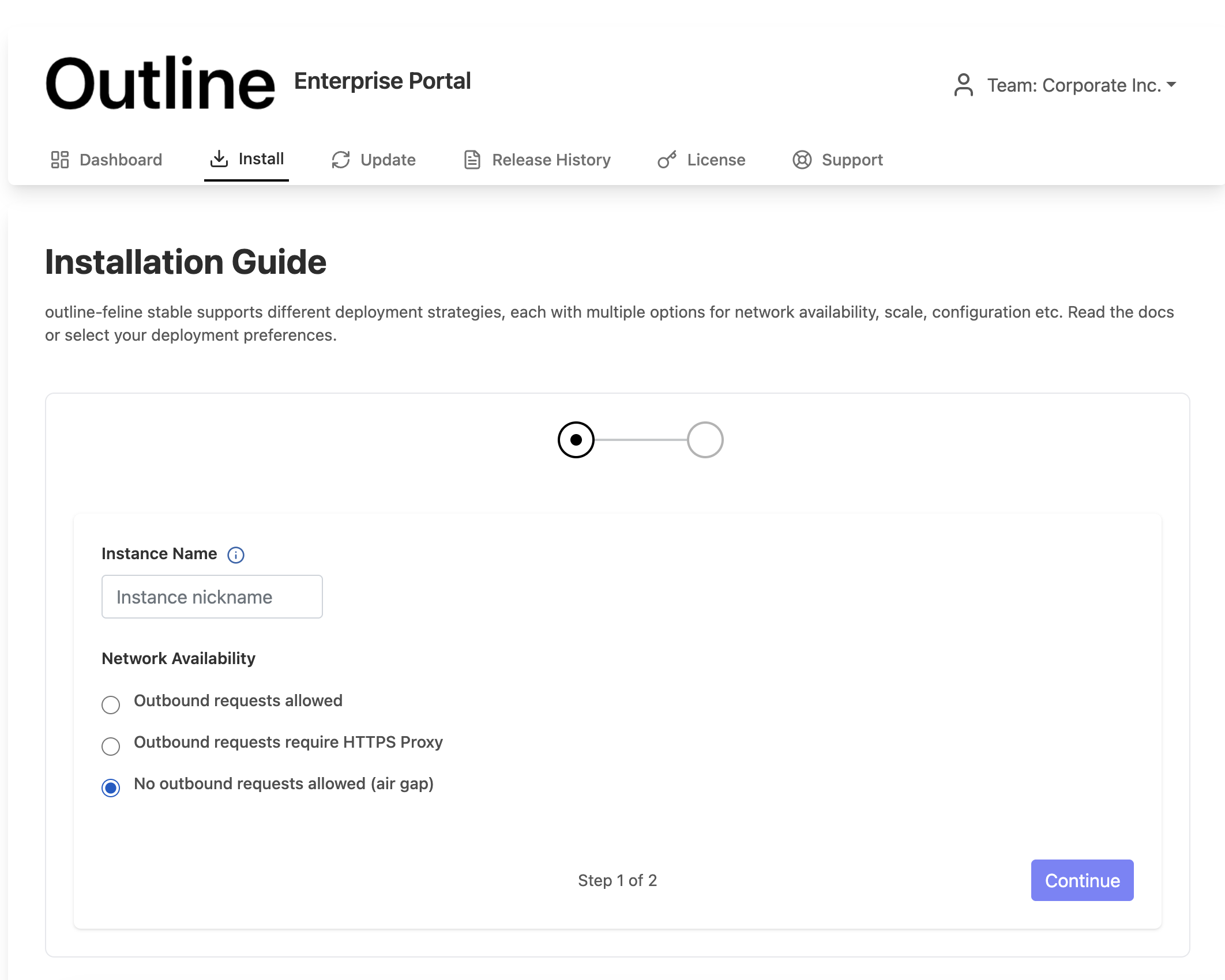
From the Enterprise Portal's Installation Guide, customers with the air gap license entitlement can choose their Network Availability to proceed with an online installation, installation behind an HTTPS proxy, or an air gap installation:
View a larger version of this image
After selecting their network availability, customers can continue to view the installation steps for their target release version:
View a larger version of this image
Configure releases to support air gap installation
This section describes how to configure releases to support air gap installation. It includes steps for Embedded Cluster v3, Embedded CLuster v2, and Helm CLI installations.
Prerequisite
These steps assume you already onboarded your application to the platform for online (connected) installations. For more information, see Onboard to the Replicated Platform.
Embedded Cluster v3 (Beta)
Embedded Cluster v3 is Beta. For information about the limitations and known issues of air gap installations with Embedded Cluster v3, see Limitations and Known Issues in Configure Embedded Cluster.
To support air gap installations with Embedded Cluster v3:
-
Configure each HelmChart custom resource's
builderkey. This ensures that all the required and optional images for your application are available in environments without internet access. Seebuilderin HelmChart v2.My chart's default values already expose all images. Do I still need to configure the
builderkey?If the default values in your Helm chart already expose all the images for air gap installations, then you do not need to configure the
builderkey.When building an air gap bundle, the Vendor Portal runs
helm templateon each Helm chart to detect which images to include. The bundle includes all images thathelm templateyields.For many applications, running
helm templatewith the default values would not yield all the images required to install. In these cases, vendors can pass the additional values in thebuilderkey to ensure that the air gap bundle includes all the necessary images. -
Configure each HelmChart custom resource to ensure that all image references resolve correctly in both online and air gap installations. You do this in the HelmChart custom resource's
valueskey using the ReplicatedImageName and ReplicatedImageRegistry template functions. See the following examples for more information:Example (Single value for full image name)
For charts that expect the full image reference in a single field, use the ReplicatedImageName template function in the HelmChart custom resource. ReplicatedImageName returns the full image name, including both the repository and registry.
For example:
# values.yamlinitImage: proxy.replicated.com/proxy/my-app/docker.io/library/busybox:1.36# HelmChart custom resourceapiVersion: kots.io/v1beta2kind: HelmChartspec:values:initImage: '{{repl ReplicatedImageName (HelmValue ".initImage") true }}'ReplicatedImageName sets
noProxytotruebecause the image reference value invalues.yamlalready contains the proxy path prefix (proxy.replicated.com/proxy/my-app/...)Example (Separate values for image registry and repository)
If a chart uses separate registry and repository fields for image references, use the ReplicatedImageRegistry template function to rewrite the
registryfield. You do not need to template therepositoryfield.# values.yamlpostgresql:image:# proxy.replicated.com or your custom domainregistry: proxy.replicated.com/proxy/app-slug/docker.iorepository: bitnami/postgresql# HelmChart custom resourceapiVersion: kots.io/v1beta2kind: HelmChartspec:values:image:registry: '{{repl ReplicatedImageRegistry (HelmValue ".image.registry") }}'Example (References to public images)
For public images that don't go through the Replicated proxy registry, set the upstream reference directly in the chart's
values.yaml. UsenoProxyso that ReplicatedImageName leaves the reference unchanged in online installations. When you includenoProxy, ReplicatedImageName still rewrites the image to the local registry in air gap installations.# values.yamlpublicImage: docker.io/library/busybox:1.36# HelmChart custom resourceapiVersion: kots.io/v1beta2kind: HelmChartspec:values:publicImage: '{{repl ReplicatedImageName (HelmValue ".publicImage") true }}' -
In the HelmChart resource that corresponds to the chart where you included the Replicated SDK as a dependency, rewrite the Replicated SDK image registry using the ReplicatedImageRegistry template function:
# HelmChart custom resourceapiVersion: kots.io/v1beta2kind: HelmChartspec:values:replicated:image:registry: '{{repl ReplicatedImageRegistry (HelmValue ".replicated.image.registry") }}' -
If you added any Helm chart
extensionsin the Embedded Cluster Config, configure them for air gap:a. Configure the
builderkey if the extension chart has optional images that only appear with specific values. Thebuilderkey tells the Vendor Portal which values to use when runninghelm templateto discover images for the air gap bundle. If the chart's defaultvalues.yamlalready exposes all images, you can skip this step. Thebuilderkey does not support Replicated template functions. Seebuilderin Embedded Cluster Config.Example (Extension with conditional images)
# Embedded Cluster ConfigapiVersion: embeddedcluster.replicated.com/v1beta1kind: Configspec:extensions:helmCharts:- chart:name: ingress-nginxchartVersion: "4.11.3"releaseName: ingress-nginxnamespace: ingress-nginxbuilder:defaultBackend:enabled: trueUse
builderfor static values that affect image discovery. Usevalues(step 4b below) for template functions likeReplicatedImageRegistrythat rewrite image references at install time.b. Rewrite image references in each extension using either the ReplicatedImageName template function (if the chart uses a single field for the full image reference) or the ReplicatedImageRegistry template function (if the chart uses separate fields for registry and repository).
Example (Extension for a Helm chart that you own)
# Embedded Cluster ConfigapiVersion: embeddedcluster.replicated.com/v1beta1kind: Configspec:extensions:helmCharts:- chart:name: ingresschartVersion: "1.2.3"releaseName: ingressnamespace: ingressvalues: |controller:image:registry: 'repl{{ ReplicatedImageRegistry (HelmValue ".controller.image.registry") }}'Example (Extension for a third-party Helm chart)
# Embedded Cluster ConfigapiVersion: embeddedcluster.replicated.com/v1beta1kind: Configspec:extensions:helmCharts:- chart:name: ingress-nginxchartVersion: "4.11.3"releaseName: ingress-nginxnamespace: ingress-nginxvalues: |controller:image:registry: 'repl{{ ReplicatedImageRegistry "registry.k8s.io" }}'The template functions add the proxy prefix in online installations and rewrite to the local registry in air gap installations.
-
In the Vendor Portal, go to the channel where you promoted the release to build the air gap bundle.
noteEmbedded Cluster requires the Enable new air gap bundle format channel setting. If the channel does not use this format, the air gap build fails. To check the setting, click the gear icon on the channel card to open Edit channel settings. See Create and Edit Channels.
Do one of the following:
- If you enabled the Automatically create airgap builds for newly promoted releases in this channel setting for the channel, watch for the build status to complete.
- If automatic air gap builds are not enabled, go to the Release history page for the channel and build the air gap bundle manually.
-
Create or edit a customer with the Air Gap Installation Option (Replicated Installers only) entitlement enabled so that you can test air gap installations. See Create and Manage Customers.
-
(Optional) Create a VM with Compatibility Matrix and set its network policy to
airgapto block outbound network access:replicated vm create --distribution ubuntureplicated network update NETWORK_ID --policy airgapWhere
NETWORK_IDis the ID of the network from the output of thevm createcommand. -
Install in your development environment to test. See Air gap installation with Embedded Cluster.
Embedded Cluster v2
To support air gap installations with Embedded Cluster v2:
-
If there are any images for your application that are not listed in your Helm chart, list these images in the
additionalImagesattribute of the Replicated Application custom resource. This ensures the air gap bundle for the release includes these images. One common use case for this is applications that use Kubernetes Operators. See Define Additional Images. -
Configure each HelmChart custom resource's
builderkey. This ensures that all the required and optional images for your application are available in environments without internet access. Seebuilderin HelmChart v2.My chart's default values already expose all images. Do I still need to configure the
builderkey?If the default values in your Helm chart already expose all the images for air gap installations, then you do not need to configure the
builderkey.When building an air gap bundle, the Vendor Portal runs
helm templateon each Helm chart to detect which images to include. The bundle includes all images thathelm templateyields.For many applications, running
helm templatewith the default values would not yield all the images required to install. In these cases, vendors can pass the additional values in thebuilderkey to ensure that the air gap bundle includes all the necessary images. -
Configure each HelmChart custom resource to ensure that all image references resolve correctly in both online and air gap installations. You do this in
optionalValueskey using the HasLocalRegistry, LocalRegistryHost, and LocalRegistryNamespace template functions. These functions return the location of the image in the user's local registry in air gap installations.Example:
# HelmChart custom resourceapiVersion: kots.io/v1beta2kind: HelmChartmetadata:name: samplechartspec:optionalValues:# Define the conditional statement in the when field- when: 'repl{{ HasLocalRegistry }}'values:postgres:image:registry: '{{repl LocalRegistryHost }}'repository: '{{repl LocalRegistryNamespace }}'/cloudnative-pg/cloudnative-pg -
Configure the HelmChart
optionalValueskey to conditionally rewrite the Replicated SDK image to the user's local registry. The default location for the image used by the Replicated SDK Helm chart isproxy.replicated.com/library/replicated-sdk-image.# HelmChart custom resourceapiVersion: kots.io/v1beta2kind: HelmChartmetadata:name: samplechartspec:optionalValues:# Rewrite Replicated SDK image to local registry- when: 'repl{{ HasLocalRegistry }}'values:replicated:image:registry: '{{repl LocalRegistryHost }}'repository: '{{repl LocalRegistryNamespace }}/library/replicated-sdk-image' -
Create a new release and promote it to the Unstable channel. For more information, see Manage Releases with the Vendor Portal or Managing Releases with the CLI.
-
In the Vendor Portal, go to the channel where you promoted the release to build the air gap bundle.
noteEmbedded Cluster requires the Enable new air gap bundle format channel setting. If the channel does not use this format, the air gap build fails. To check the setting, click the gear icon on the channel card to open Edit channel settings. See Create and Edit Channels.
Do one of the following:
- If you enabled the Automatically create airgap builds for newly promoted releases in this channel setting for the channel, watch for the build status to complete.
- If automatic air gap builds are not enabled, go to the Release history page for the channel and build the air gap bundle manually.
-
Create or edit a customer with the Air Gap Installation Option (Replicated Installers only) entitlement enabled so that you can test air gap installations. See Create and Manage Customers.
-
(Optional) Create a VM with Compatibility Matrix and set its network policy to
airgapto block outbound network access:replicated vm create --distribution ubuntureplicated network update NETWORK_ID --policy airgapWhere
NETWORK_IDis the ID of the network from the output of thevm createcommand. -
Install in your development environment to test. See Install in Air Gap Environments with Embedded Cluster.
Helm CLI
To support air gap installations with the Helm CLI:
-
For each Helm chart in your release, configure the corresponding HelmChart custom resource builder key. In the
builderkey, define the Helm values thathelm templaterequires to expose all container images needed to install the chart. This ensures that the Vendor Portal can build the air gap bundle for the release and generate the customer-facing air gap install instructions in the Enterprise Portal.My chart's default values already expose all images. Do I still need to configure the
builderkey?If the default values in your Helm chart already expose all the images for air gap installations, then you do not need to configure the
builderkey.When building an air gap bundle, the Vendor Portal runs
helm templateon each Helm chart to detect which images to include. The bundle includes all images thathelm templateyields.For many applications, running
helm templatewith the default values would not yield all the images required to install. In these cases, vendors can pass the additional values in thebuilderkey to ensure that the air gap bundle includes all the necessary images. -
Create a new release and promote it to the Unstable channel. For more information, see Manage Releases with the Vendor Portal or Managing Releases with the CLI.
-
In the Vendor Portal, go to the channel where you promoted the release to build the air gap bundle. Do one of the following:
- If you enabled the Automatically create airgap builds for newly promoted releases in this channel setting for the channel, watch for the build status to complete.
- If automatic air gap builds are not enabled, go to the Release history page for the channel and build the air gap bundle manually.
-
Create or edit a customer with the Helm CLI Air Gap Instructions (Helm CLI only) entitlement enabled so that you can test air gap installations. See Create and Manage Customers.
-
(Optional) Create a VM-based cluster with Compatibility Matrix and set its network policy to
airgapto block outbound network access:replicated cluster create --distribution VM_BASED_DISTRIBUTIONWhere
VM_BASED_DISTRIBUTIONis the target VM-based cluster distribution, likekindork3s.replicated network update NETWORK_ID --policy airgapWhere
NETWORK_IDis the ID of the network from the output of thecluster createcommand. -
Follow the steps in Install and Update with Helm in Air Gap Environments to test the installation in a development environment.