Define preflight checks
This topic describes how to define custom preflight checks for your application. For more information about preflight checks, see About Preflight Checks and Support Bundles.
These examples use troubleshoot.sh/v1beta2 (supported by KOTS, kURL, and Embedded Cluster v2). Embedded Cluster v3 requires preflight specs to use troubleshoot.sh/v1beta3, packaged as a release-level file and rendered with Helm template syntax (not repl{{ }}). troubleshoot.sh/v1beta3 is not supported by KOTS or Embedded Cluster v2. This change does not affect support bundle specs, which do not support v1beta3 on any installer. See Preflight specs must use v1beta3.
Add a preflight spec to a release
You can define custom preflight checks for your application by adding a preflight spec to your Helm chart templates.
To add a preflight spec to a release for your application:
-
In your Helm chart
templatesdirectory, create a YAML file. Name the filepreflights.yamlor similar. -
In the YAML file, add the following to create a Kubernetes Secret with the label
troubleshoot.sh/kind: preflight:# templates/preflight.yamlapiVersion: v1kind: Secretmetadata:# the troubleshoot.sh/kind: preflight label is requiredlabels:troubleshoot.sh/kind: preflightname: "{{ .Release.Name }}-preflight-config" -
In the Secret, add a
stringDatafield with a key namedpreflight.yaml. This ensures thepreflightbinary can use this Secret when it runs from the CLI.# templates/preflight.yamlapiVersion: v1kind: Secretmetadata:labels:troubleshoot.sh/kind: preflightname: "{{ .Release.Name }}-preflight-config"stringData:# add a preflight.yaml key under stringDatapreflight.yaml: |apiVersion: troubleshoot.sh/v1beta2kind: Preflightmetadata:name: preflightsspec:collectors: []analyzers: [] -
Update
spec.collectorsandspec.analyzerswith any collectors and analyzers that you want to use in the preflight checks for your application. For common examples, see Examples of preflight specs.For the complete list of available collectors and analyzers, see the Collect and Analyze sections in the Troubleshoot documentation.
noteTroubleshoot automatically includes the clusterInfo and clusterResources collectors to gather information about the cluster and cluster resources. You do not need to manually include the
clusterInfoorclusterResourcescollectors in the specification.To use only the
clusterInfoandclusterResourcescollectors, delete thespec.collectorskey from the preflight spec. -
Test the preflight checks by running them in a cluster using the preflight plugin and Helm CLI. For information about how to install the preflight plugin and run preflight checks, see Run preflight checks for Helm installations.
-
From the root directory of your Helm chart, package the chart into a
.tgzarchive:helm package --dependency-update . -
Add the chart archive to a new release. Promote the release to an internal development channel, and install the release in a development environment to test your changes.
Use a credential in a preflight check
The mysql, postgres, mssql, and redis collectors accept credentials only as a literal string in the uri field. Helm template functions and KOTS config options do not protect the credential. These functions and config options resolve to the live credential when the spec is rendered and deployed to the cluster, where a support bundle can collect the credential in plain text. The built-in redactors do not reliably mask these values.
To check a credentialed resource without exposing the credential, use a runPod collector and pass the credential to the Pod with env.valueFrom.secretKeyRef. The kubelet resolves the credential when the Pod starts, so the credential never appears in the spec.
Replicated recommends that you design these preflight checks around a pre-existing Secret. The Secret must already exist in the cluster when preflight checks run. Reference the Secret by name in the spec, and document the name and the keys that your preflight checks expect, such as password.
A Secret created by your application's own chart does not work, because application charts install after preflight checks run. This applies even when the Secret is annotated with helm.sh/hook: pre-install, because Helm hooks run during the installation of the chart that defines them.
For Embedded Cluster v3 installations, you can create the Secret in a Helm chart extension. Extensions install before application preflight checks, and the values field of a Helm extension supports Replicated template functions. This means that you can template a password that the user provides on the config screen into the value of the Secret. For more information, see Deployment pipeline and extensions.
Embedded Cluster v2 does not support template functions in the Embedded Cluster Config, so you cannot pass a user-provided password to a Helm extension. For Embedded Cluster v2, do not check the credential in a preflight check. Use a support bundle after the installation completes instead. For more information, see Pass a credential to the pod in Example support bundle specs.
More generally, if the credential is not available before preflight checks run, validate it in your application instead of in a preflight check.
The following example checks a PostgreSQL connection using a password from a pre-existing Secret named my-app-postgres.
The runPod collector requires pods/create RBAC. The collector saves everything that the Pod writes to stdout into the preflight output, so make sure that the command does not print the credential.
apiVersion: v1
kind: Secret
metadata:
  labels:
    troubleshoot.sh/kind: preflight
  name: example-preflight-config
stringData:
  preflight.yaml: |
    apiVersion: troubleshoot.sh/v1beta2
    kind: Preflight
    metadata:
      name: preflight-sample
    spec:
      collectors:
        - runPod:
            collectorName: postgres-connection
            # the Pod must run in the namespace where the Secret exists
            namespace: my-app-namespace
            timeout: 60s
            podSpec:
              restartPolicy: Never
              containers:
              - name: postgres-connection
                image: postgres:16-alpine
                command: ["/bin/sh", "-c"]
                # the command must not print the credential
                args:
                  - psql --quiet --no-password --command 'SELECT 1;' && echo "connection succeeded"
                env:
                - name: PGHOST
                  value: my-app-postgres
                - name: PGUSER
                  value: my-app
                - name: PGDATABASE
                  value: my-app
                # the spec contains only the Secret name and key, not the password
                - name: PGPASSWORD
                  valueFrom:
                    secretKeyRef:
                      name: my-app-postgres
                      key: password
      analyzers:
        - textAnalyze:
            checkName: PostgreSQL connection
            fileName: /postgres-connection.log
            regex: 'connection succeeded'
            outcomes:
              - fail:
                  message: Could not connect to the PostgreSQL database. Check the database host, credentials, and network connectivity.
              - pass:
                  message: Connected to the PostgreSQL database.
(Optional) Block installation with required (strict) preflights
For applications installed with a Replicated installer (Embedded Cluster, KOTS, kURL), you can set any preflight analyzer to strict: true. When you set strict: true, any fail outcomes for the analyzer block the deployment of the release.
Troubleshoot ignores strict preflight analyzers if the exclude property is also included and evaluates to true. See exclude in the Troubleshoot documentation.
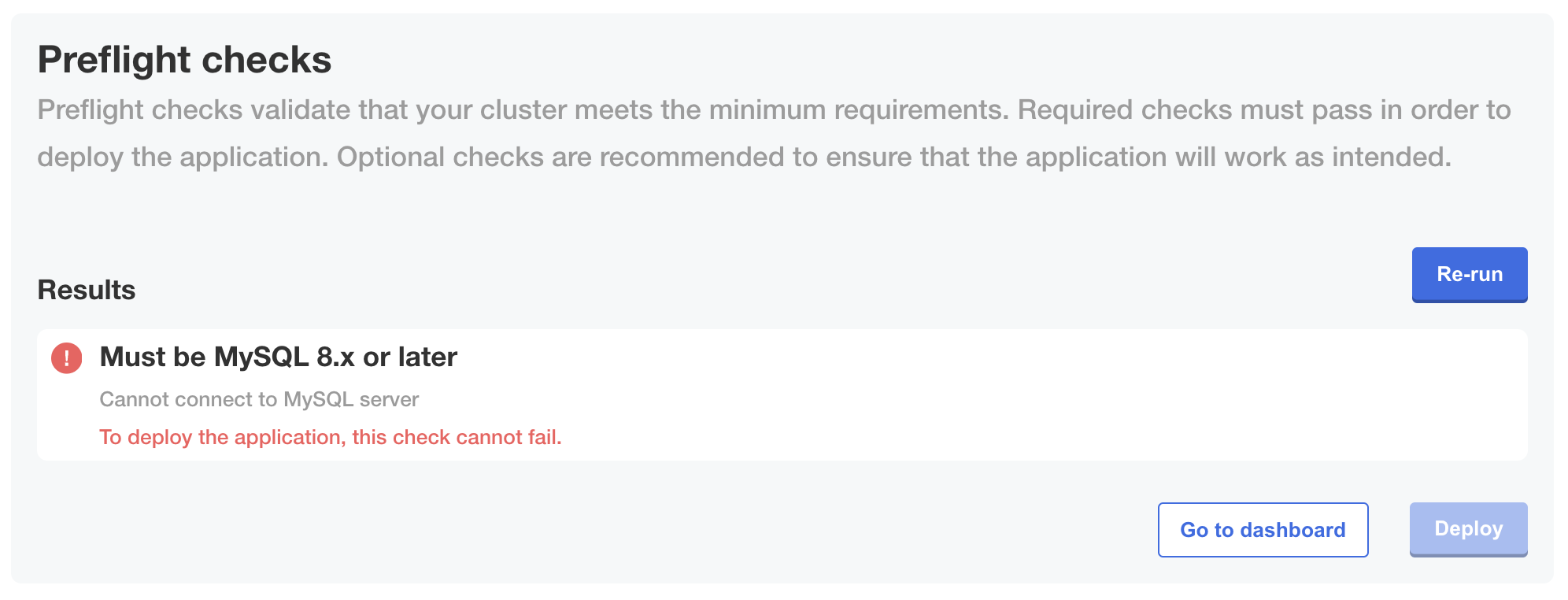
The following image shows how a fail outcome appears when you set strict: true on an analyzer, which prevents installation from continuing if the preflight check fails:
View a larger version of this image
Define preflights for non-Helm applications or KOTS v1.100.3 and earlier
For non-Helm applications or installations with KOTS v1.100.3 and earlier, add the Preflight custom resource to a YAML file at the root level of your release:
# preflights.yaml

apiVersion: troubleshoot.sh/v1beta2
kind: Preflight
metadata:
  name: preflights
spec:
  collectors: []
  analyzers: []
Customize the collectors and analyzers as desired.