# Install the Replicated SDK
This topic describes the methods for distributing and installing the Replicated SDK.
It includes information about how to install the SDK alongside Helm charts or Kubernetes manifest-based applications using the Helm CLI or a Replicated installer (Replicated KOTS, kURL, Embedded Cluster). It also includes information about installing the SDK as a standalone component in integration mode.
For information about installing the SDK in air gap mode, see [Install the SDK in Air Gap Environments](replicated-sdk-airgap).
## Requirement
To install the SDK with a Replicated installer, KOTS v1.104.0 or later and the SDK version 1.0.0-beta.12 or later are required. You can verify the version of KOTS installed with `kubectl kots version`. For Replicated Embedded Cluster installations, you can see the version of KOTS that is installed by your version of Embedded Cluster in the [Embedded Cluster Release Notes](/release-notes/rn-embedded-cluster).
## Install the SDK as a subchart
When included as a dependency of your application Helm chart, the SDK is installed as a subchart alongside the application.
To install the SDK as a subchart:
1. In your application Helm chart `Chart.yaml` file, add the YAML below to declare the SDK as a dependency. If your application is installed as multiple charts, declare the SDK as a dependency of the chart that customers install first. Do not declare the SDK in more than one chart.
```yaml
# Chart.yaml
dependencies:
- name: replicated
repository: oci://registry.replicated.com/library
version: 1.18.2
```
For the latest version information for the Replicated SDK, see the [replicated-sdk repository](https://github.com/replicatedhq/replicated-sdk/releases) in GitHub.
1. Update the `charts/` directory:
```
helm dependency update
```
:::note
If you see a 401 Unauthorized error after running `helm dependency update`, run the following command to remove credentials from the Replicated registry, then re-run `helm dependency update`:
```bash
helm registry logout registry.replicated.com
```
For more information, see [401 Unauthorized Error When Updating Helm Dependencies](replicated-sdk-installing#401).
:::
1. Package the Helm chart into a `.tgz` archive:
```
helm package .
```
1. Add the chart archive to a new release. For more information, see [Manage Releases with the CLI](/vendor/releases-creating-cli) or [Managing Releases with the Vendor Portal](/vendor/releases-creating-releases).
1. (Optional) Add a KOTS HelmChart custom resource to the release to support installation with Embedded Cluster, KOTS, or kURL. For more information, see [Configure the HelmChart Custom Resource v2](/vendor/helm-native-v2-using).
1. Save and promote the release to an internal-only channel used for testing, such as the default Unstable channel.
1. Install the release using Helm or a Replicated installer. For more information, see:
* [Online Installation with Embedded Cluster](/enterprise/installing-embedded)
* [Installing with Helm](/vendor/install-with-helm)
* [Online Installation in Existing Clusters with KOTS](/enterprise/installing-existing-cluster)
* [Online Installation with kURL](/enterprise/installing-kurl)
1. Confirm that the SDK was installed by seeing that the `replicated` Deployment was created:
```
kubectl get deploy --namespace NAMESPACE
```
Where `NAMESPACE` is the namespace in the cluster where the application and the SDK are installed.
**Example output**:
```
NAME READY UP-TO-DATE AVAILABLE AGE
my-app 1/1 1 1 35s
replicated 1/1 1 1 35s
```
## Install the SDK alongside a Kubernetes manifest-based application {#manifest-app}
For applications that use Kubernetes manifest files instead of Helm charts, the SDK Helm chart can be added to a release and then installed by KOTS alongside the application.
To install the SDK with a Replicated installer, KOTS v1.104.0 or later and the SDK version 1.0.0-beta.12 or later are required. You can verify the version of KOTS installed with `kubectl kots version`. For Replicated Embedded Cluster installations, you can see the version of KOTS that is installed by your version of Embedded Cluster in the [Embedded Cluster Release Notes](/release-notes/rn-embedded-cluster).
To add the SDK Helm chart to a release for a Kubernetes manifest-based application:
1. Install the Helm CLI using Homebrew:
```
brew install helm
```
For more information, including alternative installation options, see [Install Helm](https://helm.sh/docs/intro/install/) in the Helm documentation.
1. Download the `.tgz` chart archive for the SDK Helm chart:
```
helm pull oci://registry.replicated.com/library/replicated --version SDK_VERSION
```
Where `SDK_VERSION` is the version of the SDK to install. For a list of available SDK versions, see the [replicated-sdk repository](https://github.com/replicatedhq/replicated-sdk/tags) in GitHub.
The output of this command is a `.tgz` file with the naming convention `CHART_NAME-CHART_VERSION.tgz`. For example, `replicated-1.5.0.tgz`.
For more information and additional options, see [Helm Pull](https://helm.sh/docs/helm/helm_pull/) in the Helm documentation.
1. Add the SDK `.tgz` chart archive to a new release. For more information, see [Manage Releases with the CLI](/vendor/releases-creating-cli) or [Managing Releases with the Vendor Portal](/vendor/releases-creating-releases).
The following shows an example of the SDK Helm chart added to a draft release for a standard manifest-based application:

[View a larger version of this image](/images/sdk-kots-release.png)
1. If one was not created automatically, add a KOTS HelmChart custom resource to the release. HelmChart custom resources have `apiVersion: kots.io/v1beta2` and `kind: HelmChart`.
**Example:**
```yaml
apiVersion: kots.io/v1beta2
kind: HelmChart
metadata:
name: replicated
spec:
# chart identifies a matching chart from a .tgz
chart:
# for name, enter replicated
name: replicated
# for chartversion, enter the version of the
# SDK Helm chart in the release
chartVersion: 1.8.1
```
As shown in the example above, the HelmChart custom resource requires the name and version of the SDK Helm chart that you added to the release:
* **`chart.name`**: The name of the SDK Helm chart is `replicated`. You can find the chart name in the `name` field of the SDK Helm chart `Chart.yaml` file.
* **`chart.chartVersion`**: The chart version varies depending on the version of the SDK that you pulled and added to the release. You can find the chart version in the `version` field of SDK Helm chart `Chart.yaml` file.
For more information about configuring the HelmChart custom resource to support KOTS installations, see [About Distributing Helm Charts with KOTS](/vendor/helm-native-about) and [HelmChart v2](/reference/custom-resource-helmchart-v2).
1. Save and promote the release to an internal-only channel used for testing, such as the default Unstable channel.
1. Install the release using a Replicated installer. For more information, see:
* [Online Installation with Embedded Cluster](/enterprise/installing-embedded)
* [Online Installation in Existing Clusters with KOTS](/enterprise/installing-existing-cluster)
* [Online Installation with kURL](/enterprise/installing-kurl)
1. Confirm that the SDK was installed by seeing that the `replicated` Deployment was created:
```
kubectl get deploy --namespace NAMESPACE
```
Where `NAMESPACE` is the namespace in the cluster where the application, the Admin Console, and the SDK are installed.
**Example output**:
```
NAME READY UP-TO-DATE AVAILABLE AGE
kotsadm 1/1 1 1 112s
my-app 1/1 1 1 28s
replicated 1/1 1 1 27s
```
## Install the SDK in integration mode
You can install the Replicated SDK in integration mode to develop locally against the SDK API without needing to add the SDK to your application, create a release in the Replicated Vendor Portal, or make changes in your environment. You can also use integration mode to test sending instance data to the Vendor Portal, including any custom metrics that you configure.
To use integration mode, install the Replicated SDK as a standalone component using a valid Development license created in the Vendor Portal. After you install in integration mode, the SDK provides default mock data for requests to the SDK API `app` endpoints. Requests to the `license` endpoints use the real data from your Development license.
To install the SDK in integration mode:
1. Create a Development license that you can use to install the SDK in integration mode:
1. In the Vendor Portal, go to **Customers** and click **Create customer**.
1. Complete the following fields:
1. For **Customer name**, add a name for the customer.
1. For **Assigned channel**, assign the customer to the channel that you use for testing. For example, Unstable.
1. For **Customer type**, select **Development**.
1. For **Customer email**, add the email address that you want to use for the license.
1. For **Install types**, ensure that the **Existing Cluster (Helm CLI)** option is enabled.
1. (Optional) Add any license field values that you want to use for testing:
1. For **Expiration policy**, you can add an expiration date for the license.
1. For **Custom fields**, you can add values for any custom license fields in your application. For information about how to create custom license fields, see [Manage Customer License Fields](/vendor/licenses-adding-custom-fields).
1. Click **Save Changes**.
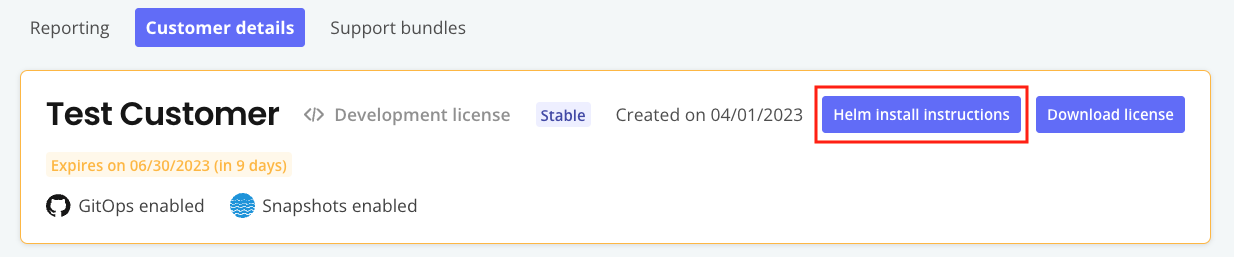
1. On the **Manage customer** page for the customer you created, click **Helm install instructions**.
 [View a larger version of this image](/images/helm-install-instructions-button.png)
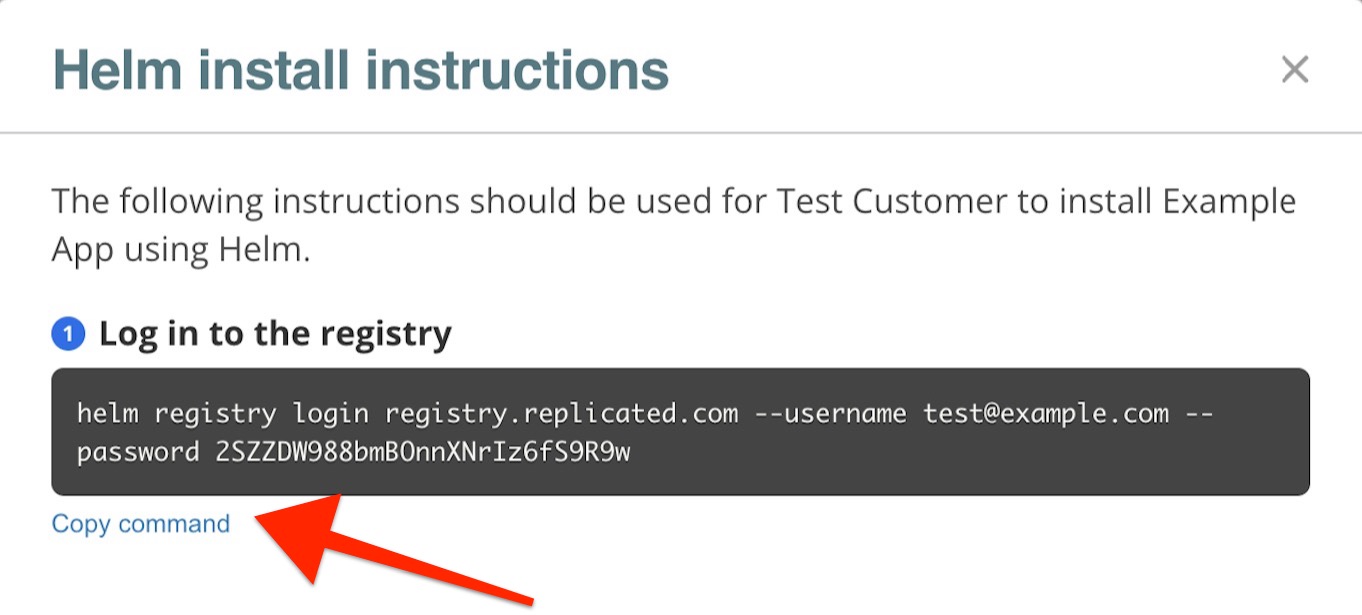
1. In the **Helm install instructions** dialog, copy and run the command to log in to the Replicated registry.
[View a larger version of this image](/images/helm-install-instructions-button.png)
1. In the **Helm install instructions** dialog, copy and run the command to log in to the Replicated registry.
 [View a larger version of this image](/images/helm-install-instructions-registry-login.png)
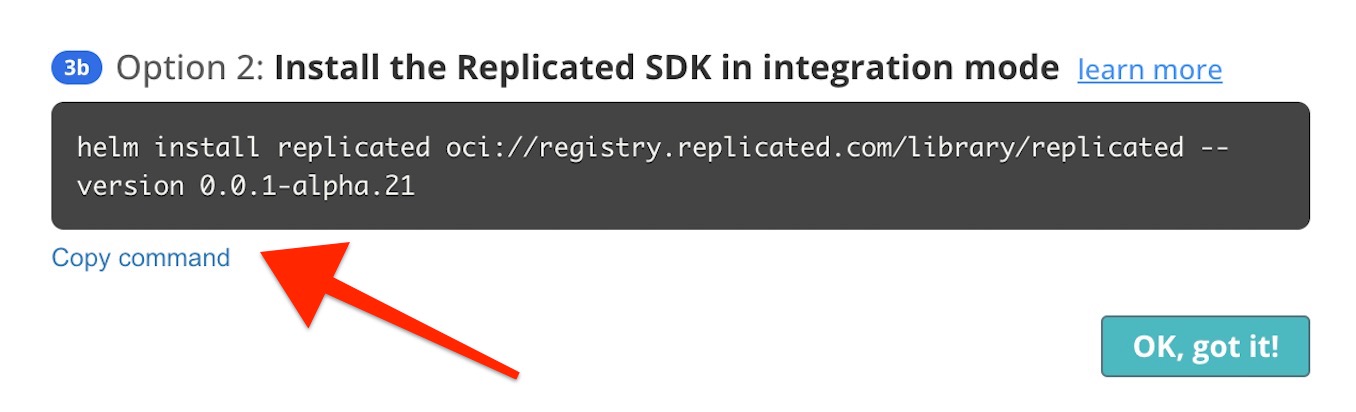
1. From the same dialog, copy and run the command to install the SDK in integration mode:
[View a larger version of this image](/images/helm-install-instructions-registry-login.png)
1. From the same dialog, copy and run the command to install the SDK in integration mode:
 [View a larger version of this image](/images/helm-install-instructions-sdk-integration.png)
1. Make requests to the SDK API from your application. You can access the SDK API for testing by forwarding the API service to your local machine. For more information, see [Port Forwarding the SDK API Service](/vendor/replicated-sdk-development#port-forward).
## Troubleshoot
### 401 Unauthorized error when updating Helm dependencies {#401}
#### Symptom
You see an error message similar to the following after adding the Replicated SDK as a dependency in your Helm chart then running `helm dependency update`:
```
Error: could not download oci://registry.replicated.com/library/replicated-sdk: failed to authorize: failed to fetch oauth token: unexpected status from GET request to https://registry.replicated.com/v2/token?scope=repository%3Alibrary%2Freplicated-sdk%3Apull&service=registry.replicated.com: 401 Unauthorized
```
#### Cause
When you run `helm dependency update`, Helm attempts to pull the Replicated SDK chart from the Replicated registry. An error can occur if you are already logged in to the Replicated registry with a license that has expired, such as when testing application releases.
#### Solution
To solve this issue:
1. Run the following command to remove login credentials for the Replicated registry:
```
helm registry logout registry.replicated.com
```
1. Re-run `helm dependency update` for your Helm chart.
[View a larger version of this image](/images/helm-install-instructions-sdk-integration.png)
1. Make requests to the SDK API from your application. You can access the SDK API for testing by forwarding the API service to your local machine. For more information, see [Port Forwarding the SDK API Service](/vendor/replicated-sdk-development#port-forward).
## Troubleshoot
### 401 Unauthorized error when updating Helm dependencies {#401}
#### Symptom
You see an error message similar to the following after adding the Replicated SDK as a dependency in your Helm chart then running `helm dependency update`:
```
Error: could not download oci://registry.replicated.com/library/replicated-sdk: failed to authorize: failed to fetch oauth token: unexpected status from GET request to https://registry.replicated.com/v2/token?scope=repository%3Alibrary%2Freplicated-sdk%3Apull&service=registry.replicated.com: 401 Unauthorized
```
#### Cause
When you run `helm dependency update`, Helm attempts to pull the Replicated SDK chart from the Replicated registry. An error can occur if you are already logged in to the Replicated registry with a license that has expired, such as when testing application releases.
#### Solution
To solve this issue:
1. Run the following command to remove login credentials for the Replicated registry:
```
helm registry logout registry.replicated.com
```
1. Re-run `helm dependency update` for your Helm chart.