# Install with Helm

This topic describes how to use Helm to install releases that contain one or more Helm charts. For more information about the `helm install` command, including how to override values in a chart during installation, see [Helm Install](https://helm.sh/docs/helm/helm_install/) in the Helm documentation.

## Prerequisites

Before you install, complete the following prerequisites:

* The customer record in the Vendor Portal must have a valid email address. This email address is only used as a username for the Replicated registry and is never contacted. For more information about adding an email address for a customer, see [Creating a Customer](/vendor/releases-creating-customer).

* The customer must have the **Existing Cluster (Helm CLI)** install type enabled. For more information about enabling install types for customers in the Vendor Portal, see [Manage Install Types for a License](licenses-install-types).

* Create an image pull secret for the proxy registry and add it to your Helm chart. This ensures that the Replicated proxy registry can be used to grant proxy access to your application images for Helm CLI installations. To create the image pull secret and add it to your Helm chart, follow the steps in [Use the Proxy Registry with Helm CLI Installations](/vendor/helm-image-registry).

* Declare the Replicated SDK as a dependency in your Helm chart. For more information, see [Install the SDK as a Subchart](replicated-sdk-installing#install-the-sdk-as-a-subchart) in _Installing the Replicated SDK_.

* Add a unique HelmChart custom resource for each Helm chart in your release. The Vendor Portal runs `helm template` against these custom resources to build the list of images in the release.

    Releases that do not include a HelmChart custom resource have an empty image list. This means that the air gap install instructions render no image relocation commands, the `.airgap` bundle is built without application images, and the [Security Center (Beta)](/vendor/security-center-about) has no images to scan. For more information, see [`builder`](/reference/custom-resource-helmchart-v2#builder) in _HelmChart v2_.

    The following is an example HelmChart custom resource for a chart named `examplechart` with a chart version of `1.0.0`:

    ```yaml
    apiVersion: kots.io/v1beta2
    kind: HelmChart
    metadata:
      name: examplechart
    spec:
      chart:
        # name must match the name of the chart
        name: examplechart
        # chartVersion must match the version of the chart
        chartVersion: 1.0.0
      # weight determines the order that charts are listed in the
      # install instructions, with lower weights first
      weight: 1
    ```

    The `weight` property also determines the order in which the chart is listed in the Helm install instructions. For more information, see [Chart installation order](#order) below.

    For more information about the HelmChart custom resource, see [HelmChart v2](/reference/custom-resource-helmchart-v2).

## Chart installation order {#order}

For releases that contain more than one Helm chart, the `weight` property of the HelmChart custom resource determines the order in which the charts are listed in the Helm install instructions. Charts are listed by `weight` in ascending order, with lower weights first. Charts with the same `weight` are listed alphabetically by chart name. A chart that has a HelmChart custom resource that does not set `weight` uses the default of `0`, so it is listed with the other charts that have a `weight` of `0`. Only charts that do not have a corresponding HelmChart custom resource are listed last. The images in those charts are also absent from the release's image list, as described in [Prerequisites](#prerequisites) above.

The same ordering is used for the install and update instructions in the Replicated Enterprise Portal. For more information, see [View Install and Update Instructions](/vendor/enterprise-portal-use#view-install-and-update-instructions) in _Log in to and use the Classic Enterprise Portal_. For the new Enterprise Portal, see [Installing and upgrading](/vendor/enterprise-portal-v2-use#installing-and-upgrading) in _Log in to and use the Enterprise Portal_.

:::note
The `weight` property only controls the order in which the commands are listed. The Helm CLI install instructions do not wait for one chart to be deployed and ready before the next chart is installed. If your application requires that a chart is ready before another chart is installed, include this requirement in the documentation that you provide to your customers.
:::

For more information about how `weight` controls the deployment order for installations with a Replicated installer, see [Helm chart deployment order with `weight`](/vendor/orchestrating-resource-deployment#weight) in _Orchestrate resource deployment_.

## Firewall openings for online installations with Helm {#firewall}

The domains for the services listed below need to be accessible from servers performing online installations. No outbound internet access is required for air gap installations.

For services hosted at domains owned by Replicated, the table includes a link to the list of IP addresses for the domain at [replicatedhq/ips](https://github.com/replicatedhq/ips/blob/main/ip_addresses.json) in GitHub. These are the addresses that Replicated services listen on, so they are the addresses that an online installation connects to.

That repository covers every Replicated service, so it lists more domains than any one installation needs. Use the table below to determine which of its entries apply to you.

:::note
Replicated does not publish the source IP addresses that its services use for outbound connections, such as when the Replicated proxy registry pulls an image from a vendor's registry, and does not commit to keeping those addresses stable. Do not use the addresses in `replicatedhq/ips` to build an allowlist for traffic originating from Replicated. Where access to a registry must be restricted, use registry credentials rather than a source IP allowlist.
:::

Some of the domains listed below belong to public services that Replicated does not own, such as Docker Hub, GitHub and Amazon S3. Their IP addresses are not in `replicatedhq/ips`, so consult the provider's documentation for their ranges.

<table>
  <tr>
      <th width="50%">Domain</th>
      <th>Description</th>
  </tr>
  <tr>
      <td>`replicated.app` &#42;</td>
      <td><p>Required when the Replicated SDK is included. Application metadata is pulled from `replicated.app`, and the application sends its version, license ID, and application ID. This domain is owned by Replicated, Inc., which is headquartered in Los Angeles, CA.</p><p>For IP addresses, see [replicatedhq/ips](https://github.com/replicatedhq/ips/blob/main/ip_addresses.json).</p></td>
  </tr>
  <tr>
      <td>`registry.replicated.com`</td>
      <td><p>Required only for accounts not yet using the single-registry model. This domain is owned by Replicated, Inc., which is headquartered in Los Angeles, CA.</p><p>For IP addresses, see [replicatedhq/ips](https://github.com/replicatedhq/ips/blob/main/ip_addresses.json).</p></td>
  </tr>
  <tr>
      <td>`proxy.replicated.com`</td>
      <td><p>Private images and Helm charts are pulled through the proxy registry. This domain is owned by Replicated, Inc., which is headquartered in Los Angeles, CA.</p><p>For IP addresses, see [replicatedhq/ips](https://github.com/replicatedhq/ips/blob/main/ip_addresses.json).</p></td>
  </tr>
</table>

&#42; Required only if the [Replicated SDK](/vendor/replicated-sdk-overview) is included as a dependency of the application Helm chart.

:::note
Newer accounts route all image and chart pulls through `proxy.replicated.com` and do not need to allow `registry.replicated.com`. Older accounts must allow both. To move to the single-registry setup and remove `registry.replicated.com` from your allowlist, contact your Replicated account representative.
:::

## Install

To install a Helm chart:

1. In the Vendor Portal, go to **Customers** and click on the target customer.

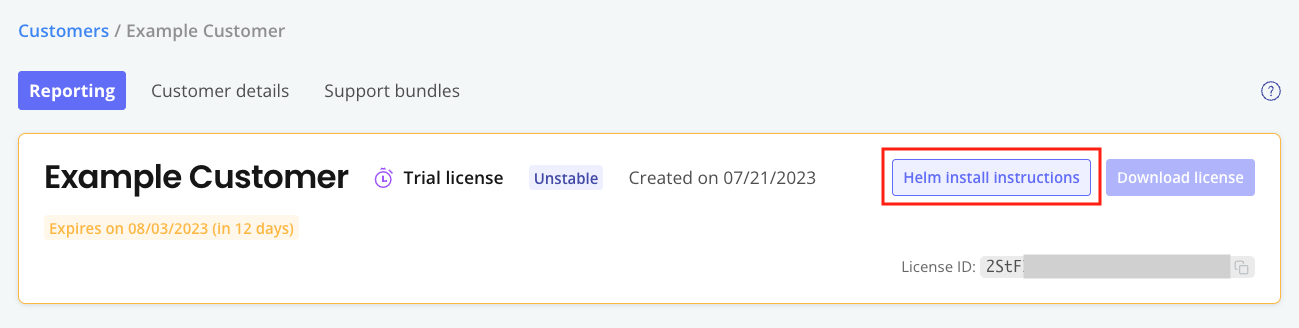
1. Click **Helm install instructions**.

     <img alt="Helm install button" src="/images/helm-install-button.png" width="700px"/>

     [View a larger image](/images/helm-install-button.png)

     :::note
     Helm charts marked with the `kots.io/installer-only: "true"` annotation will not appear in the Helm install instructions. These charts are deployed only when using Replicated installers (Embedded Cluster, KOTS, and kURL). For more information, see [HelmChart v2](/reference/custom-resource-helmchart-v2).
     :::

1. In the **Helm install instructions** dialog, run the first command to log in:

     ```bash
     helm registry login proxy.replicated.com --username EMAIL_ADDRESS --password LICENSE_ID
     ```
     Where:
     * `EMAIL_ADDRESS` is the customer's email address
     * `LICENSE_ID` is the ID of the customer's license

     :::note
     You can safely ignore `WARNING: Using --password via the CLI is insecure.` The warning appears because the password is stored in bash history.

     To avoid the warning, click **(show advanced)** to use a command that prompts for the password.
     :::

     :::note
     Newer accounts log in to `proxy.replicated.com` and pull from `proxy.replicated.com/registry/...`, routing all image and chart pulls through one registry. Older accounts might instead see `registry.replicated.com` in the dialog. Both work, so run the commands shown. To switch to the single-registry commands, contact your Replicated account representative.
     :::

1. (Optional) Run the second and third commands to install the preflight plugin and run preflight checks. If no preflight checks are defined, these commands are not displayed. For more information about defining and running preflight checks, see [About Preflight Checks and Support Bundles](preflight-support-bundle-about).

1. Run the fourth command to install using Helm:

     ```bash
     helm install RELEASE_NAME oci://proxy.replicated.com/registry/APP_SLUG/CHANNEL/CHART_NAME
     ```
     Where:
     * `RELEASE_NAME` is the name of the Helm release.
     * `APP_SLUG` is the slug for the application. For information about how to find the application slug, see [Get the Application Slug](/vendor/vendor-portal-manage-app#slug).
     * `CHANNEL` is the lowercased name of the channel where the release was promoted, such as `beta` or `unstable`. Channel is not required for releases promoted to the Stable channel.
     * `CHART_NAME` is the name of the Helm chart.

     If the release contains more than one Helm chart, the dialog lists a `helm install` command for each chart. The commands are listed in the order determined by the `weight` property of the HelmChart custom resource. For more information, see [Chart installation order](#order) above.

     :::note
     To install the SDK with custom RBAC permissions, include the `--set` flag with the `helm install` command to override the value of the `replicated.serviceAccountName` field with a custom service account. For more information, see [Customizing RBAC for the SDK](/vendor/replicated-sdk-customizing#customize-rbac-for-the-sdk).
     :::

1. (Optional) In the Vendor Portal, click **Customers**. You can see that the customer you used to install is marked as **Active** and the details about the application instance are listed under the customer name. 

     **Example**:

     ![example customer in the Vendor Portal with an active instance](/images/sdk-customer-active-example.png)
     [View a larger version of this image](/images/sdk-customer-active-example.png)