# Air gap installation in existing clusters with KOTS
This topic describes how to use Replicated KOTS to install an application in an existing Kubernetes cluster in an air-gapped environment.
The procedures in this topic apply to installation environments that do not have access to the internet, known as _air gap_ environments.
## Prerequisites
Complete the following prerequisites:
* Ensure that your cluster meets the minimum system requirements. See [Minimum System Requirements](/enterprise/installing-general-requirements#minimum-system-requirements) in _Installation Requirements_.
* Ensure that you have at least the minimum RBAC permissions in the cluster required to install KOTS. See [RBAC Requirements](/enterprise/installing-general-requirements#rbac-requirements) in _Installation Requirements_.
:::note
If you manually created RBAC resources for KOTS as described in [Namespace-scoped RBAC Requirements](/enterprise/installing-general-requirements#namespace-scoped), include both the `--ensure-rbac=false` and `--skip-rbac-check` flags when you run the `kots install` command.
These flags prevent KOTS from checking for or attempting to create a Role with `* * *` permissions in the namespace. For more information about these flags, see [install](/reference/kots-cli-install) or [admin-console upgrade](/reference/kots-cli-admin-console-upgrade).
:::
* Review the options available with the `kots install` command before installing. The `kots install` command includes several optional flags to support different installation use cases. For a list of options, see [install](/reference/kots-cli-install) in the _KOTS CLI_ documentation.
* Ensure that there is a compatible Docker image registry available inside the network. For more information about Docker registry compatibility, see [Compatible Image Registries](/enterprise/installing-general-requirements#registries).
KOTS rewrites the application image names in all application manifests to read from the on-premises registry, and it re-tags and pushes the images to the on-premises registry. When authenticating to the registry, credentials with `push` permissions are required.
A single application expects to use a single namespace in the Docker image registry. The namespace name can be any valid URL-safe string, supplied at installation time. A registry typically expects the namespace to exist before any images can be pushed into it.
:::note
Amazon Elastic Container Registry (ECR) does not use namespaces.
:::
## Install {#air-gap}
To install in an air gap cluster with KOTS:
1. Download the customer license:
1. In the [Vendor Portal](https://vendor.replicated.com), go to the **Customers** page.
1. Click on the name of the target customer and go to the **Manage customer** tab.
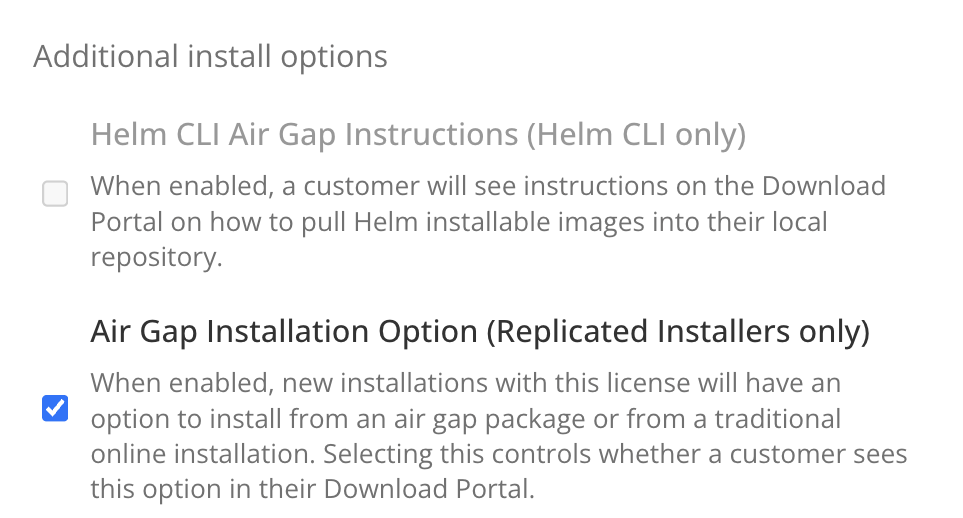
1. Under **License options**, enable the **Airgap Download Enabled** option. Click **Save Changes**.
[View a larger version of this image](/images/airgap-download-enabled.png)
1. At the top of the screen, click **Download license** to download the air gap enabled license.

[View a larger version of this image](/images/download-airgap-license.png)
1. Go the channel where the target release was promoted to build and download the air gap bundle for the release:
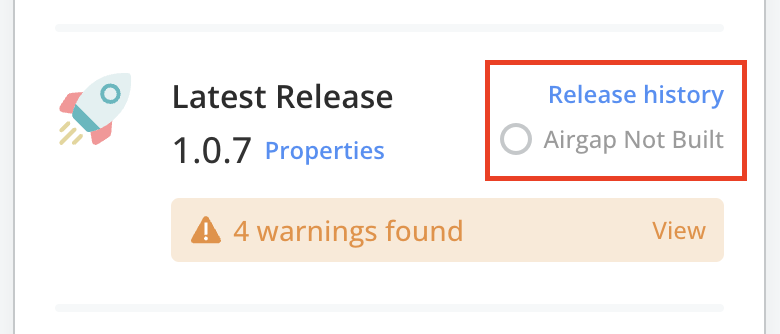
* If the **Automatically create airgap builds for newly promoted releases in this channel** setting is enabled on the channel, watch for the build status to complete.
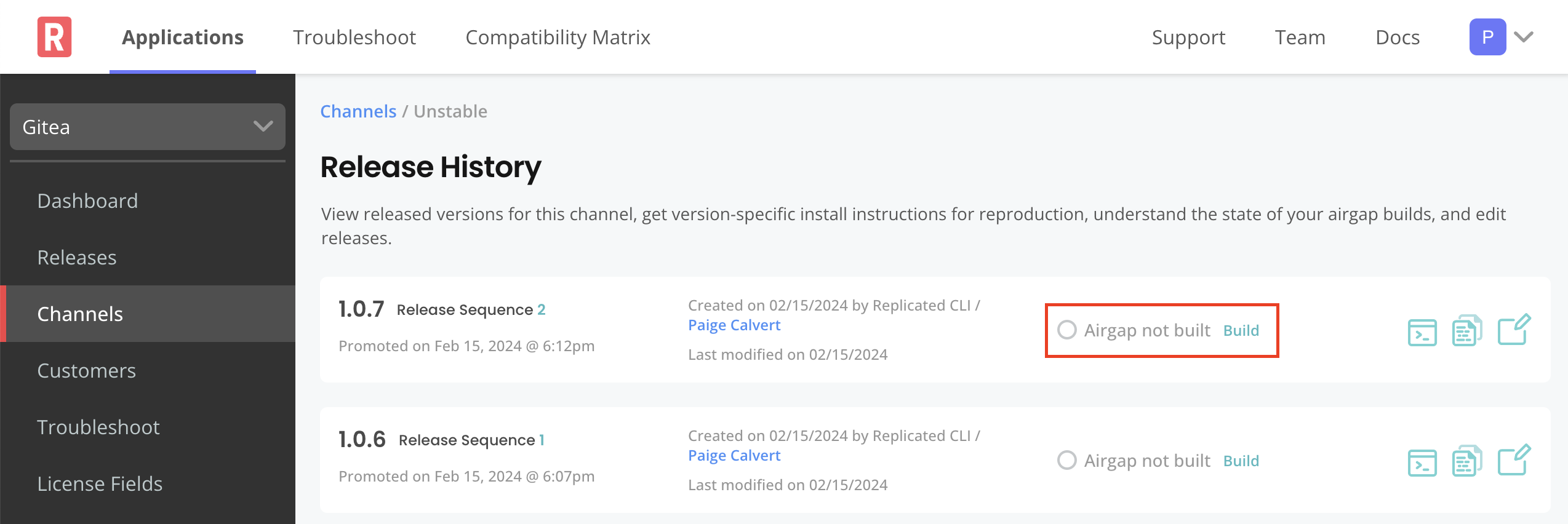
* If automatic air gap builds are not enabled, go to the **Release history** page for the channel and build the air gap bundle manually.
 [View a larger version of this image](/images/release-history-link.png)
[View a larger version of this image](/images/release-history-build-airgap-bundle.png)
1.
1.
1.
1.
:::note
The versions of the KOTS CLI and the `kotsadm.tar.gz` bundle must match. You can check the version of the KOTS CLI with `kubectl kots version`.
:::
1.
1. Install the KOTS Admin Console using the images that you pushed in the previous step:
```shell
kubectl kots install APP_NAME \
--kotsadm-registry REGISTRY_HOST \
--registry-username RO-USERNAME \
--registry-password RO-PASSWORD
```
Replace:
* `APP_NAME` with a name for the application. This is the unique name that KOTS will use to refer to the application that you install.
* `REGISTRY_HOST` with the same hostname for the private registry where you pushed the Admin Console images.
* `RO_USERNAME` and `RO_PASSWORD` with the username and password for an account that has read-only access to the private registry.
:::note
KOTS stores these read-only credentials in a Kubernetes secret in the same namespace where the Admin Console is installed.
KOTS uses these credentials to pull the images. To allow KOTS to pull images, the credentials are automatically created as an imagePullSecret on all of the Admin Console Pods.
:::
1.
1. Access the Admin Console on port 8800. If the port forward is active, go to [http://localhost:8800](http://localhost:8800) to access the Admin Console.
If you need to reopen the port forward to the Admin Console, run the following command:
```shell
kubectl kots admin-console -n NAMESPACE
```
Replace `NAMESPACE` with the namespace where KOTS is installed.
1. Log in with the password that you created during installation.
1. Upload your license file.
1. Upload the `.airgap` application air gap bundle.
1. On the config screen, complete the fields for the application configuration options and then click **Continue**.
1. On the **Preflight checks** page, the application-specific preflight checks run automatically. Preflight checks are conformance tests that run against the target namespace and cluster to ensure that the environment meets the minimum requirements to support the application. Click **Deploy**.
:::note
Replicated recommends that you address any warnings or failures, rather than dismissing them. Preflight checks help ensure that your environment meets the requirements for application deployment.
:::
1. (Minimal RBAC Only) If you are installing with minimal role-based access control (RBAC), KOTS recognizes if the preflight checks failed due to insufficient privileges. When this occurs, a kubectl CLI preflight command displays that lets you manually run the preflight checks. The Admin Console then automatically displays the results of the preflight checks. Click **Deploy**.

[View a larger version of this image](/images/kubectl-preflight-command.png)
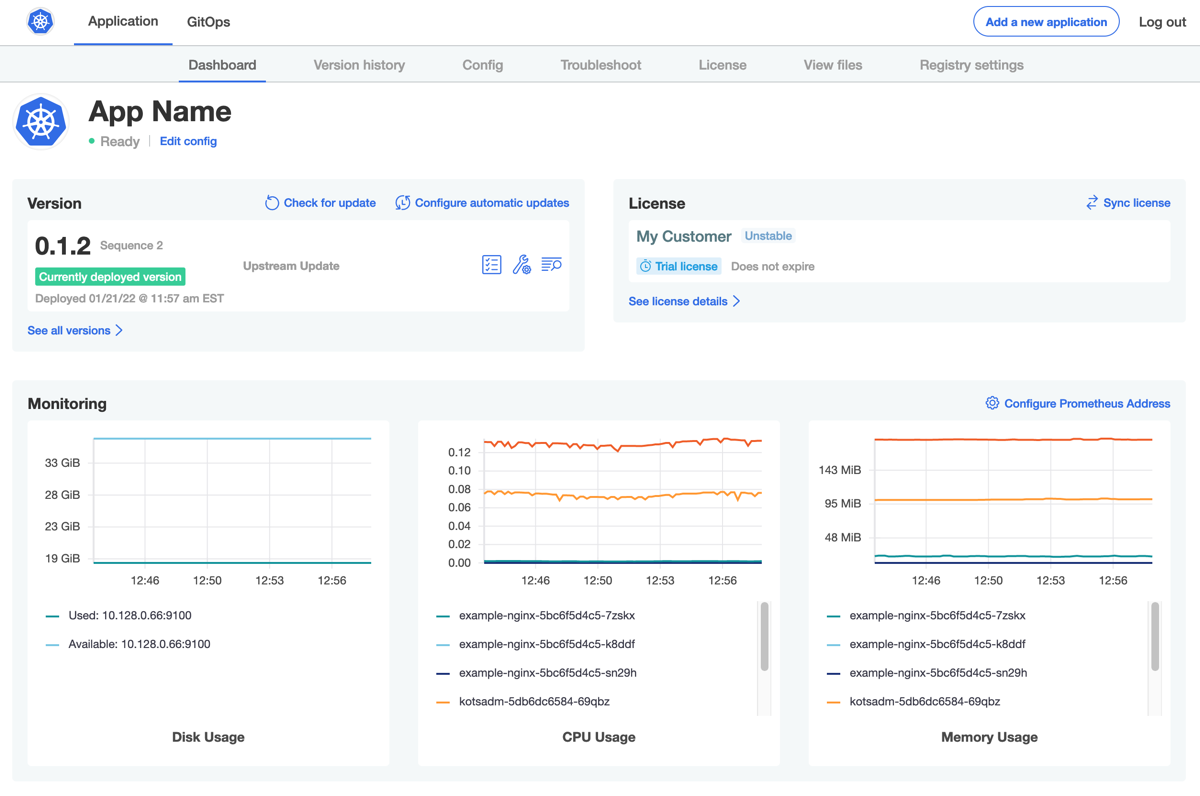
The Admin Console dashboard opens.
On the Admin Console dashboard, the application status changes from Missing to Unavailable while the Deployment is being created. When the installation is complete, the status changes to Ready. For example:
[View a larger version of this image](/images/kotsadm-dashboard-graph.png)
[View a larger version of this image](/images/release-history-link.png)

[View a larger version of this image](/images/release-history-build-airgap-bundle.png)
1.
1.
1.
1.
:::note
The versions of the KOTS CLI and the `kotsadm.tar.gz` bundle must match. You can check the version of the KOTS CLI with `kubectl kots version`.
:::
1.
1. Install the KOTS Admin Console using the images that you pushed in the previous step:
```shell
kubectl kots install APP_NAME \
--kotsadm-registry REGISTRY_HOST \
--registry-username RO-USERNAME \
--registry-password RO-PASSWORD
```
Replace:
* `APP_NAME` with a name for the application. This is the unique name that KOTS will use to refer to the application that you install.
* `REGISTRY_HOST` with the same hostname for the private registry where you pushed the Admin Console images.
* `RO_USERNAME` and `RO_PASSWORD` with the username and password for an account that has read-only access to the private registry.
:::note
KOTS stores these read-only credentials in a Kubernetes secret in the same namespace where the Admin Console is installed.
KOTS uses these credentials to pull the images. To allow KOTS to pull images, the credentials are automatically created as an imagePullSecret on all of the Admin Console Pods.
:::
1.
1. Access the Admin Console on port 8800. If the port forward is active, go to [http://localhost:8800](http://localhost:8800) to access the Admin Console.
If you need to reopen the port forward to the Admin Console, run the following command:
```shell
kubectl kots admin-console -n NAMESPACE
```
Replace `NAMESPACE` with the namespace where KOTS is installed.
1. Log in with the password that you created during installation.
1. Upload your license file.
1. Upload the `.airgap` application air gap bundle.
1. On the config screen, complete the fields for the application configuration options and then click **Continue**.
1. On the **Preflight checks** page, the application-specific preflight checks run automatically. Preflight checks are conformance tests that run against the target namespace and cluster to ensure that the environment meets the minimum requirements to support the application. Click **Deploy**.
:::note
Replicated recommends that you address any warnings or failures, rather than dismissing them. Preflight checks help ensure that your environment meets the requirements for application deployment.
:::
1. (Minimal RBAC Only) If you are installing with minimal role-based access control (RBAC), KOTS recognizes if the preflight checks failed due to insufficient privileges. When this occurs, a kubectl CLI preflight command displays that lets you manually run the preflight checks. The Admin Console then automatically displays the results of the preflight checks. Click **Deploy**.

[View a larger version of this image](/images/kubectl-preflight-command.png)
The Admin Console dashboard opens.
On the Admin Console dashboard, the application status changes from Missing to Unavailable while the Deployment is being created. When the installation is complete, the status changes to Ready. For example:

[View a larger version of this image](/images/kotsadm-dashboard-graph.png)